Quick answer: A QC app puts your inspection checklists on the phone. Inspectors record pass or fail with readings and photos at incoming, in-process and final stages, every result is linked to a batch, and the owner sees rejection reasons in one report. On Zoho Creator, this is built with forms, approvals and dashboards, and works on the Creator mobile app.
In many factories, quality checks are done well but recorded badly. The inspector fills a paper sheet, the sheet goes into a file, and the file goes into a cupboard. When a customer complains three months later, nobody can find which batch it was, who checked it, or what the reading was.
Paper also hides patterns. If the same defect comes back every week, you only see it if someone sits down and counts the sheets. Most of the time, nobody does.
This guide shows what a QC app does, how to build one on Zoho Creator, and how to start small.
Why paper QC sheets and Excel fall short
- Results come late. Sheets are typed into Excel at the end of the day or week. By then the bad batch has moved to the next stage.
- No proof. A tick mark on paper does not show what the part looked like. A photo does.
- No tracing. A customer complaint cannot be traced back to the batch, the machine, the shift and the inspector in a few clicks.
- No pattern. Rejection reasons are not counted, so the top 2 or 3 defects that cause most of the rejection are not visible.
- Holds get forgotten. A batch put on hold for rework stays in a corner because nobody is reminded about it.
Where the QC app checks quality
Most manufacturers check quality at three points. The app covers all three, plus what happens after a fail.
- Incoming check (IQC): raw material and bought parts are checked when they arrive. Pass, fail or accept with deviation, linked to the supplier and the GRN (goods receipt).
- In-process check (IPQC): checks at set stages on the line, for example first piece approval after a machine setup, and checks every few hours.
- Final inspection (FQC): the finished batch is checked against the spec before dispatch, using a sample size you set.
- Fail and rework (NCR): a failed check creates a non-conformance record (NCR): defect type, quantity, photo, and the decision: rework, reject or accept with approval.
- Fix the cause: for repeat or serious defects, the QC head records the root cause and the action taken, with an owner and a due date.
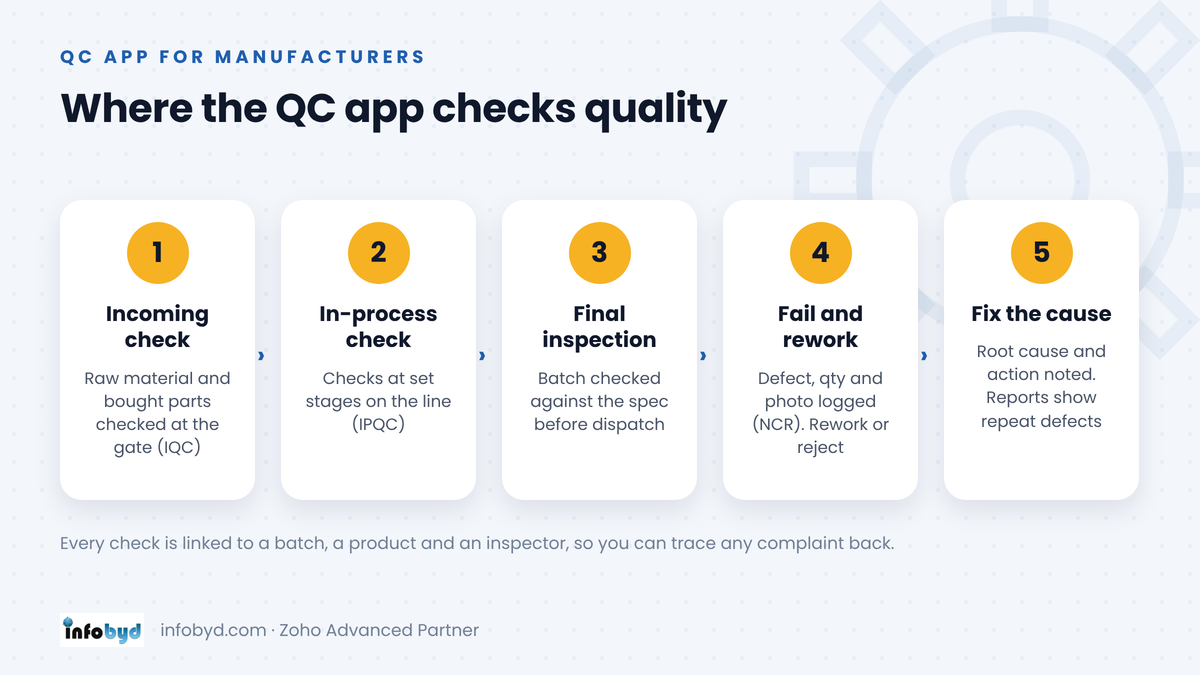
The 5 points where the QC app records quality.
How it works on Zoho Creator
Zoho Creator is Zoho's low-code platform for custom apps, and it is included in Zoho One. These features do the work:
| Need | Zoho Creator feature |
|---|---|
| Checklist for each product | A checklist master: parameters, spec, tolerance and method for each product and stage |
| Inspector works on the shop floor | Creator mobile app (Android and iPhone), with photo upload and offline forms that sync later |
| Pick the right batch fast | QR code or barcode scan in form fields, from the batch tag or job card |
| Pass or fail decided by rules | Workflows compare the reading with the tolerance and mark pass or fail |
| Accept with deviation needs sign-off | Approvals, so only the QC head or plant head can release a failed batch |
| Owner wants the numbers | Reports and dashboards in Creator, or Zoho Analytics |
| Batch link to stock | Link with Zoho Inventory batches, or the batch list in your production board |
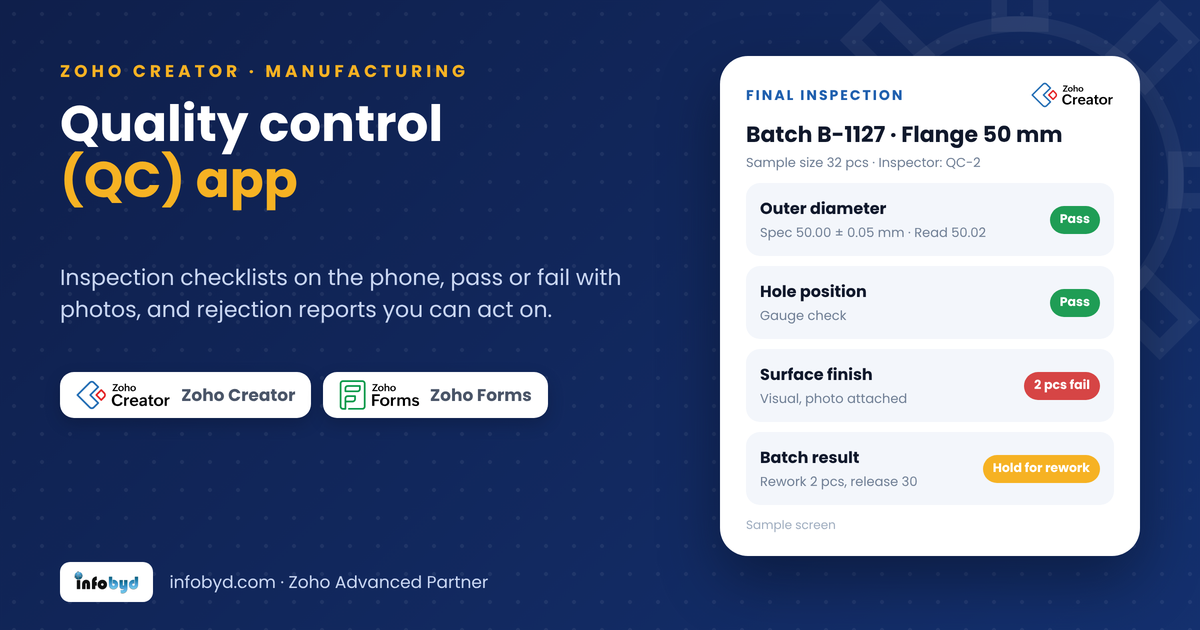
Tip: let the app decide pass or fail from the reading. If the spec is 50.00 ± 0.05 mm and the inspector types 50.08, the app marks it as a fail. The inspector does not have to judge, and the result is the same on every shift.
What to record in every check
Keep each check short and clear. These fields are enough to start:
- Who, what, when: batch or lot number, product, stage, machine and shift, inspector, date and time.
- The result: reading for each parameter (or pass/fail for visual checks), sample size, pieces passed, pieces failed.
- Proof: a photo for every fail, and for visual checks where it helps.
- The decision: release, hold, rework or reject, and who approved it.
- For an NCR: defect type from a fixed list, quantity, likely cause, action, owner and due date.
With this data, the app shows first pass yield (pieces that pass the first time, as a percentage of all pieces checked), rejections by defect type, batches on hold, and complaints traced to batches.
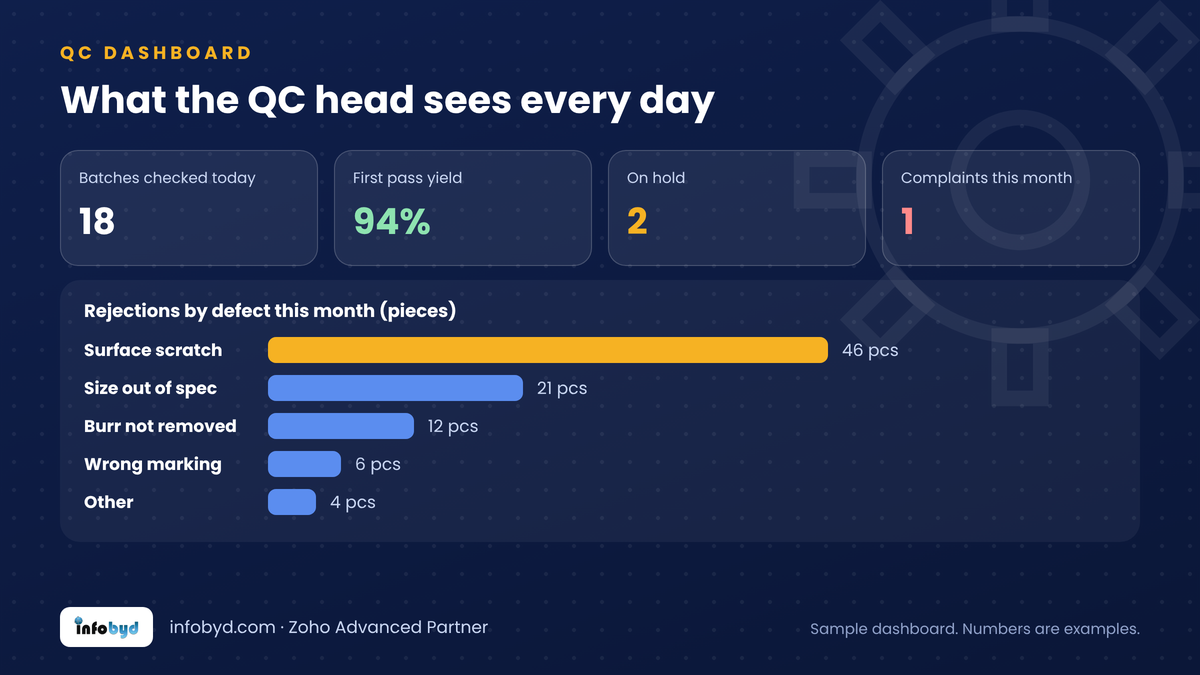
Sample dashboard. The numbers are examples.
Start in 5 steps
- Pick one product line and one stage. Final inspection is often the best place to start, because it protects the customer first.
- Write the checklist. Use your current QC sheet and the drawing or customer spec. Fix the defect list to 8 to 12 types, plus "other".
- Build the first version. Checklist master, inspection form, NCR form and one dashboard. With a Zoho partner, this is usually a few weeks of work.
- Run paper and app side by side for 1 to 2 weeks. Then stop the paper sheet for that stage.
- Add stages. Move to incoming and in-process checks, add approvals for deviations, and link batches with stock and dispatch.
Common mistakes to avoid
- Free text for defects. If every inspector types the defect in their own words, you cannot count them. Use a fixed list.
- No photo on fails. Without a photo, a fail is hard to discuss with the operator or the supplier.
- Too many parameters. Check what the customer and the drawing ask for. Not every possible measurement.
- Nobody looks at the report. Put the defect report on the agenda of the weekly production meeting.
How Infobyd helps
Infobyd is a Zoho Advanced Partner. We build Zoho Creator apps for manufacturers: QC, production boards, job work tracking and maintenance. We start from your current QC sheets, keep the forms quick for inspectors, and set up the reports your QC head and owner will use every week. If you also want to plan machine servicing, see our guide to a machine maintenance schedule app.
Frequently asked questions
What is a QC app for manufacturers?
It is an app that puts your quality checklists on a phone or tablet. Inspectors record readings, pass or fail and photos for each batch, and the app shows rejection reasons, batches on hold and first pass yield in reports.
Which quality checks can the app cover?
Incoming material checks (IQC), in-process checks on the line (IPQC), final inspection before dispatch (FQC), and non-conformance records (NCR) for every fail, with rework or reject decisions.
Can inspectors use the QC app without internet?
Yes, for forms set up for offline use in the Zoho Creator mobile app. Entries are saved on the phone and sync when it is back online. Pass or fail rules that need a live connection run after the entry syncs.
Can the app trace a customer complaint back to the batch?
Yes. Every check is saved with the batch or lot number, product, stage, machine, shift and inspector. You search by batch and see every check done on it, with photos.
Is Zoho Creator better than a ready-made QC software?
A ready-made tool works if your process matches it. Zoho Creator is a better fit when your checklists, stages and reports are specific to your products, or when you want QC linked with production, stock and billing in Zoho.
Want your QC checks on the phone?
Share one of your current QC sheets. We will show you how it works as a Zoho Creator app, with photos, batch tracing and a rejection report.