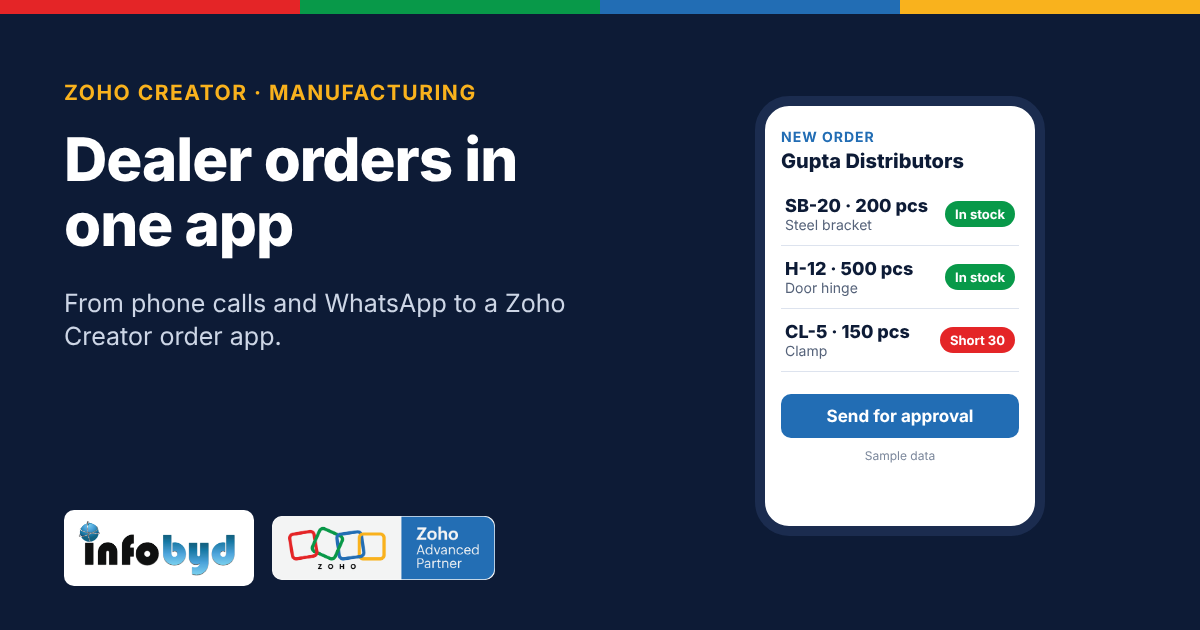
A dealer order app built on Zoho Creator lets each dealer or your sales team place an order from a phone, pick the right item from a list, see if stock is available, and send it for approval. Once approved, the order goes straight to production planning, with no retyping.
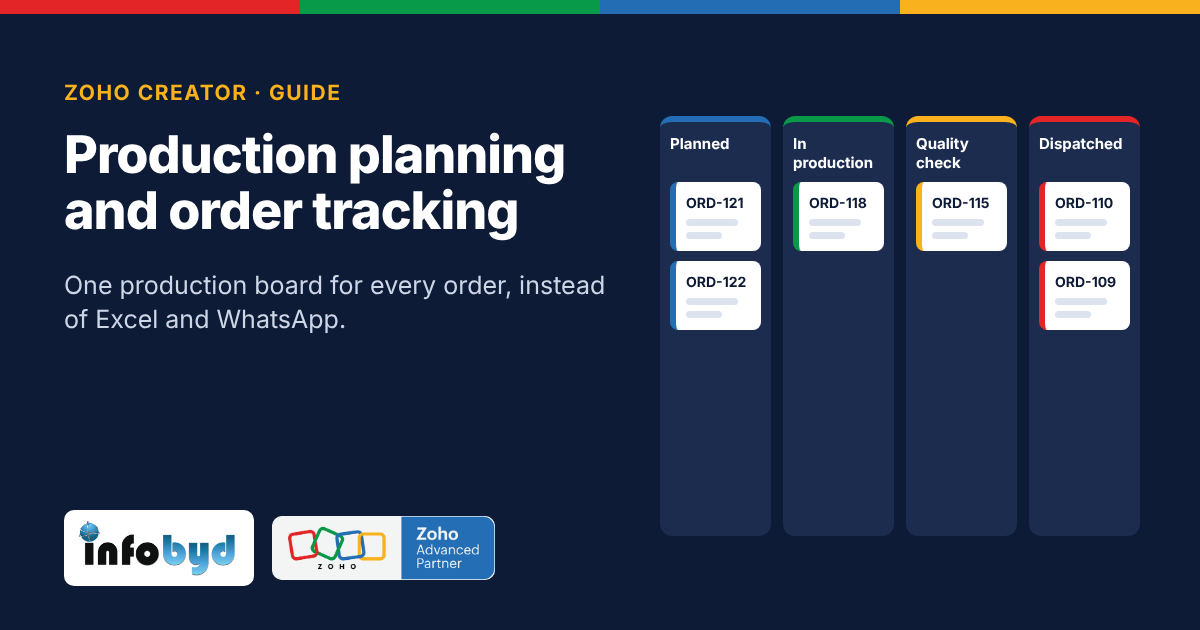
Already planning production? Read Production planning and order tracking with Zoho Creator.
Note: dealer names, item codes and numbers in this post are sample data.
The problem with orders on calls and WhatsApp
Here is what a normal morning can look like for a manufacturer's sales desk (sample example):
- A dealer gives a missed call three times, then sends "same as last time" on WhatsApp.
- Another dealer orders "200 brackets" but there are three bracket sizes.
- A paper slip from the field has an item code nobody can read.
What this costs you:
- Wrong items. Without a fixed item list, people write names in their own way.
- Promises you cannot keep. Sales says yes before checking stock, then the factory says the item is short.
- Slow handover to production. Someone has to retype each order into Excel or the ERP. Orders wait in a phone or inbox.
- No history. When a dealer asks "where is my order?", the team has to search chats to find it.
The fix is not more people on the phone. It is one place where every order is entered the same way.
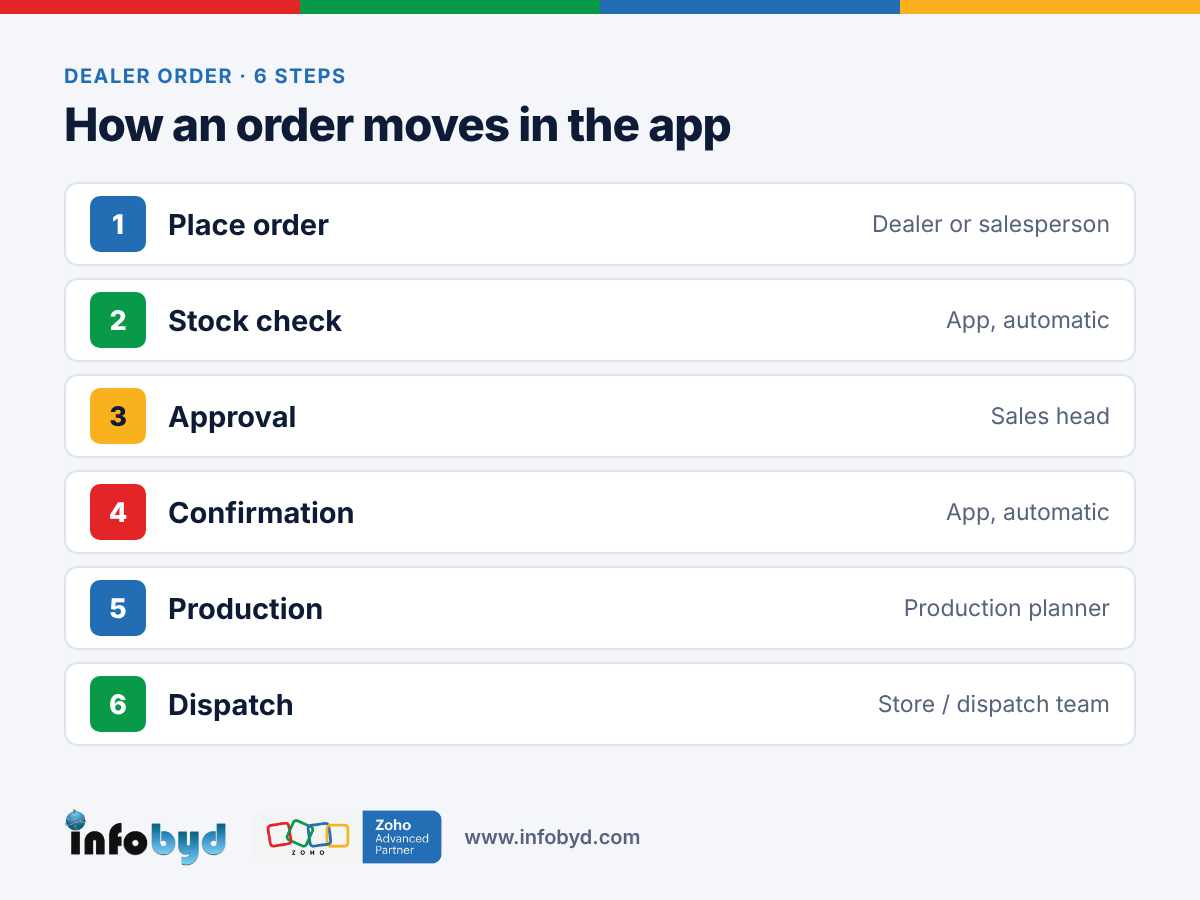
How an order moves in the app
| Step | Who | What happens in the app |
|---|---|---|
| 1. Place order | Dealer (or your salesperson for the dealer) | Picks items from a fixed list with codes and sizes; enters quantity; adds a note if needed |
| 2. Stock check | App (automatic) | Shows stock against each line; marks lines as "In stock" or "Short" |
| 3. Approval | Sales head | Approves, changes quantity, or rejects with a reason (for example, credit limit crossed) |
| 4. Confirmation | App (automatic) | Dealer gets an email or message with the order number and expected date |
| 5. Production | Production planner | Approved order appears on the production board; short items are planned first |
| 6. Dispatch | Store / dispatch team | Marks items packed and sent; dealer can see the status |
Sample order (example only): Gupta Distributors, Indore · SB-20 Steel bracket 200 pcs (in stock) · H-12 Door hinge 500 pcs (in stock) · CL-5 Clamp 150 pcs (short 30).
What the order app is built with
Zoho Creator is a low-code platform (a tool to build business apps with little coding). Facts below were checked on Zoho's help pages on 5 Nov 2026; some features depend on your Creator plan.
| Part of the app | Zoho Creator feature | Zoho source |
|---|---|---|
| Dealer login | Portals let outside users, like customers or suppliers, log in and use only the parts of the app you share. Each dealer sees only their own orders. Portals are on paid plans. | Creator Help: Portal users |
| Order form | A form with a lookup to your item list, so dealers pick items instead of typing names | Built into Zoho Creator |
| Approvals | Workflow rules send each order to the sales head, with approve and reject options | Built into Zoho Creator |
| Field team on the road | The Creator mobile app works on Android and iPhone. Chosen forms can be filled offline and are sent when the phone is back online. | Creator Help: Offline access |
| Stock numbers | Stock can come from a stock table inside the app, or from Zoho Inventory or your current software through an API or Zoho Flow | Depends on your setup |
| Reports | Pending orders, orders by dealer, short items, and orders sent to production | Built into Zoho Creator |
We use Zoho Creator here because dealer ordering rules are different in every factory (credit limits, schemes, minimum quantities). A custom app follows your rules instead of forcing a fixed process.
How to build it in 5 steps
- Clean your item list. One code, one name and one unit for every product. Remove duplicates. This list is the base of the whole app.
- Add your dealers. Name, city, GST number, price list and credit limit for each dealer.
- Build the order form. Dealer picks items from the list, enters quantity, and sees stock. Add simple checks, for example a minimum order quantity.
- Set approvals and messages. Orders above a value or over the credit limit go to the sales head. Every approved order sends a confirmation to the dealer.
- Link to production. Approved orders appear on the production board, so the planner does not need to retype them. Start with 5 to 10 dealers for two weeks, then open it to all.
Tip: keep phone orders allowed in the first month, but enter them in the app yourself. Dealers switch faster when they see their order history in one place.
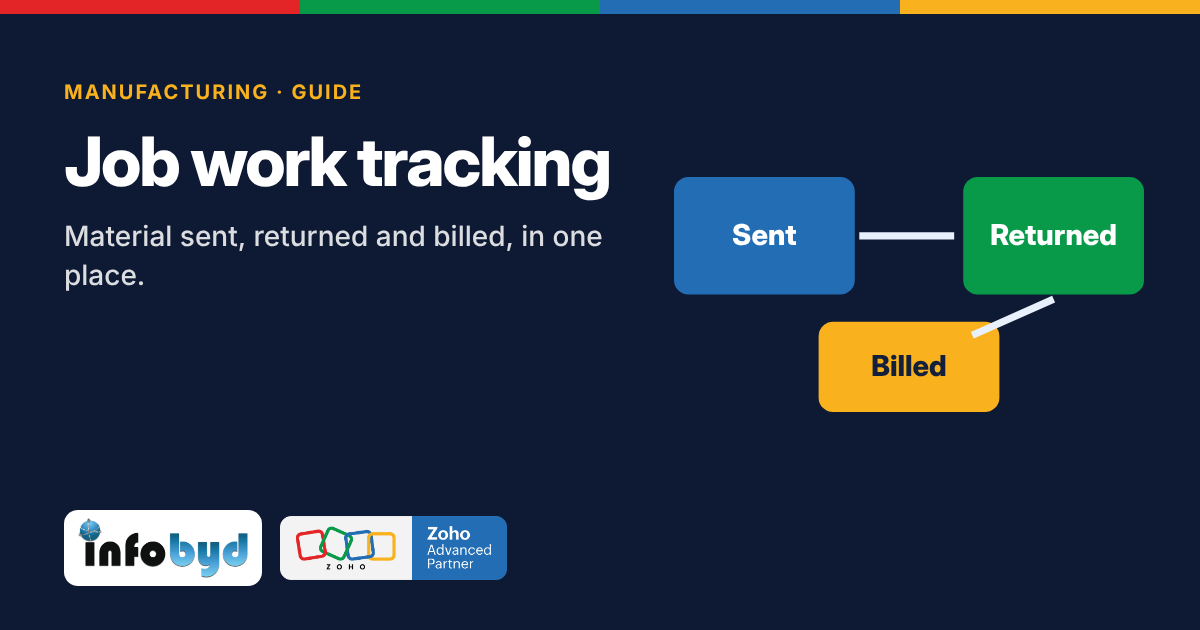
If you also send work to outside job workers, see Job work tracking for manufacturers.
How Infobyd helps
Infobyd is a Zoho Advanced Partner. For manufacturers we:
- Study how orders come in today, from dealer to dispatch
- Clean and import your item and dealer lists
- Build the dealer order app in Zoho Creator, with your approval rules
- Connect it to your production board, stock data and accounts where needed
- Train your sales desk and dealers, and support you after go-live
Learn more on our Zoho Creator page and our Zoho for manufacturing page.
Frequently asked questions
Do dealers need to install anything?
No special software. Dealers can use the portal in a web browser or in the Zoho Creator mobile app with their own login. They see only their own orders.
Can our field salespeople take orders without internet?
Yes, for chosen forms. The Zoho Creator mobile app can save entries offline and send them when the phone is back online. Some form features do not work offline, so we check your form during setup.
Can the app show stock before an order is confirmed?
Yes. Stock can come from a stock table in the app or from your stock software through an integration. The order line then shows if the item is in stock or short.
Can we set credit limits and approvals?
Yes. You can send orders above a set value, or from dealers over their credit limit, to a manager for approval before they go to production.
Will this replace our ERP or accounting software?
Not always. Many factories keep their accounts software and use the Creator app only for orders and production. The app can send approved orders to your other software where an integration is possible.
How long does it take to build?
It depends on your products, rules and integrations. A first version for one product group can often be ready in a few weeks. We share a clear plan first.